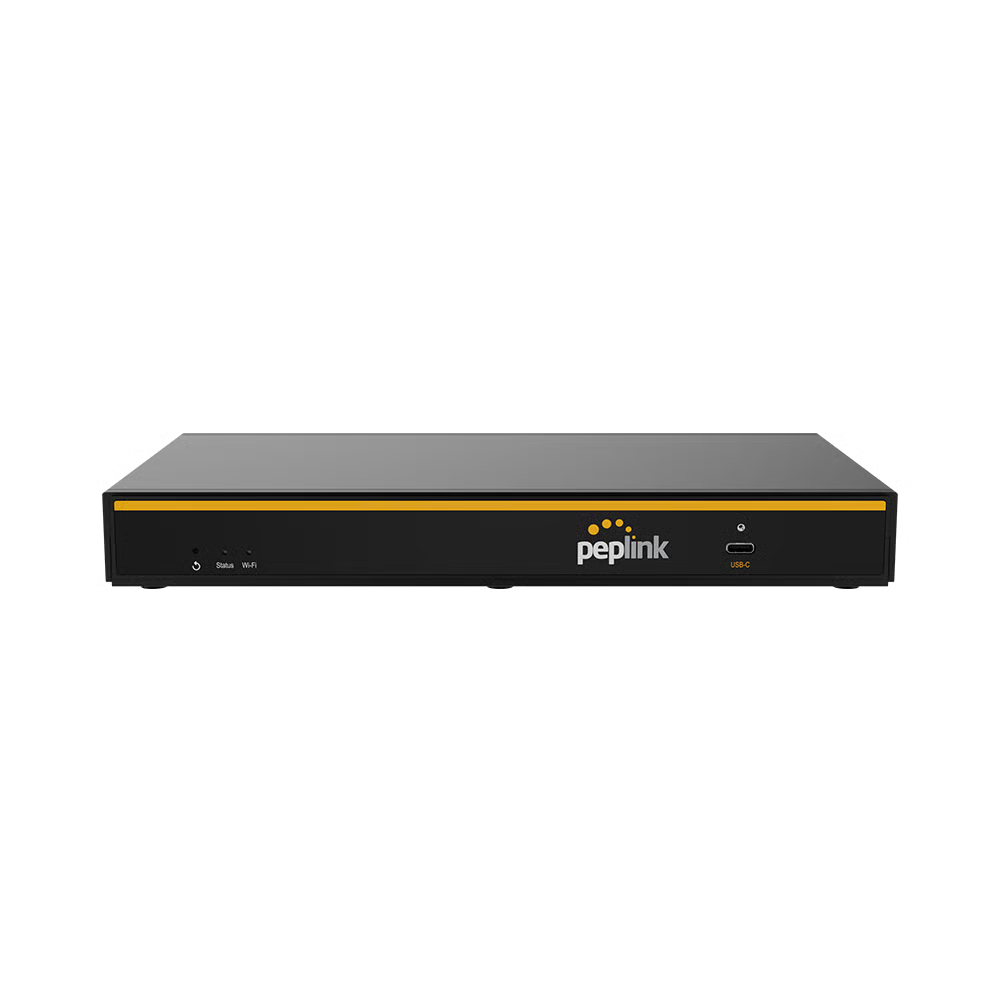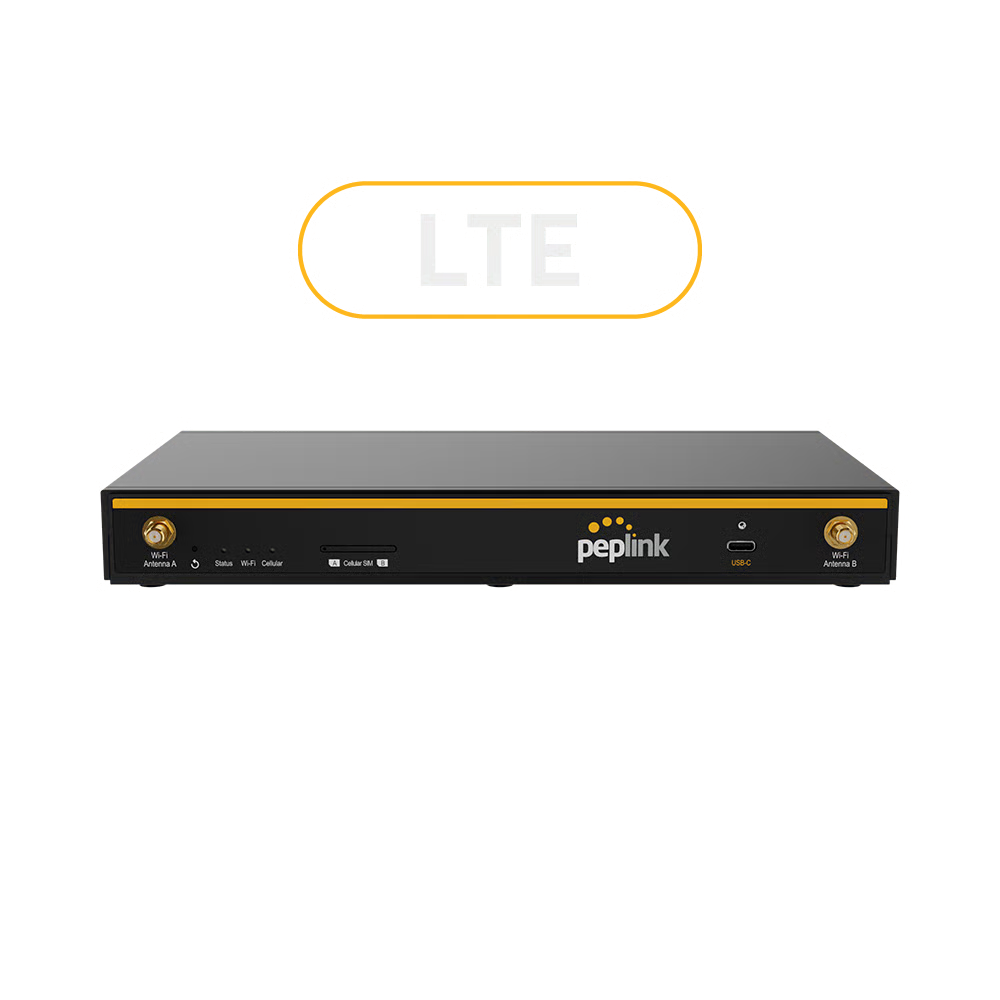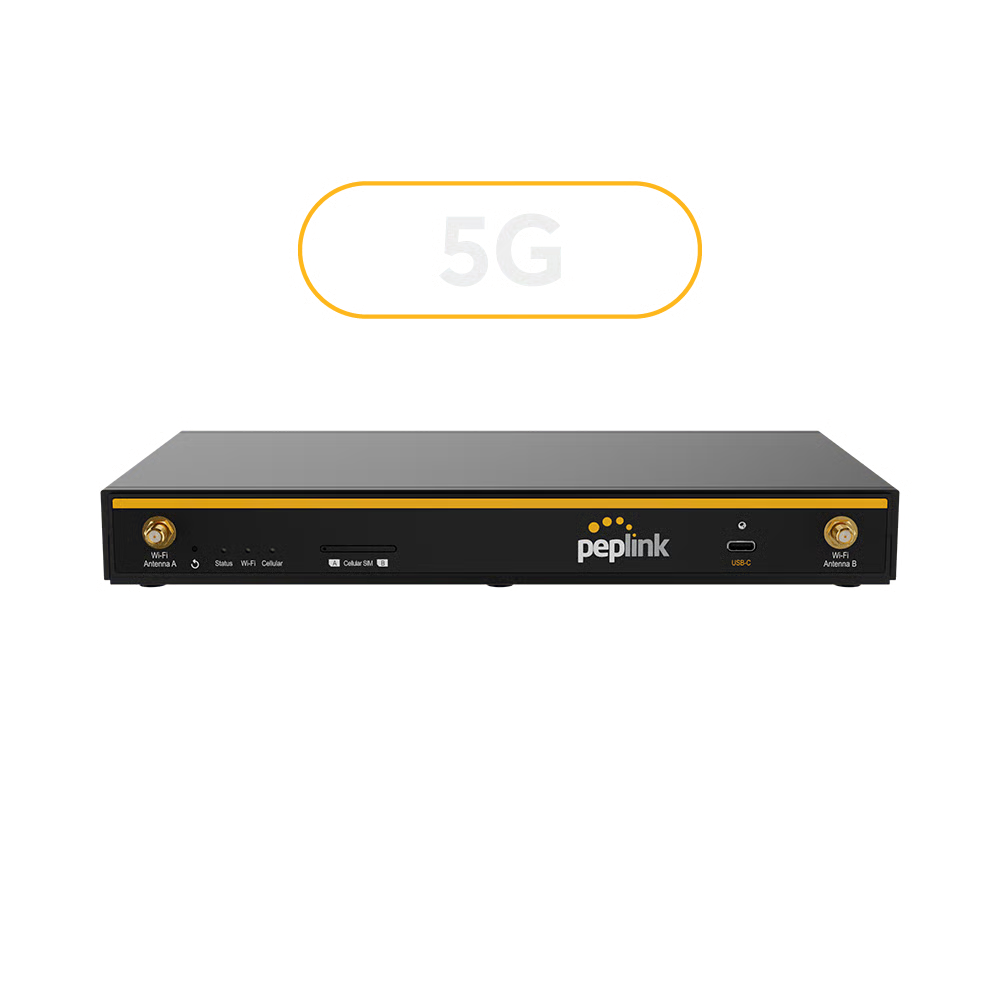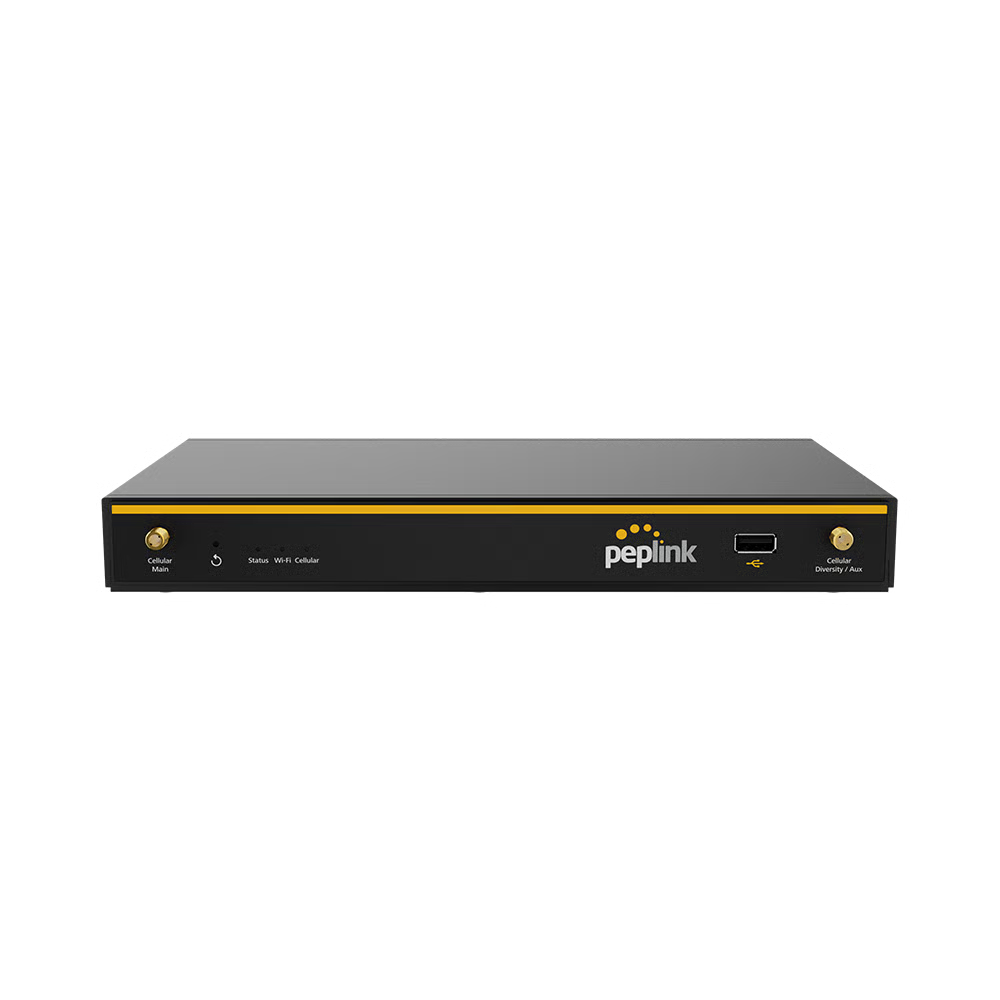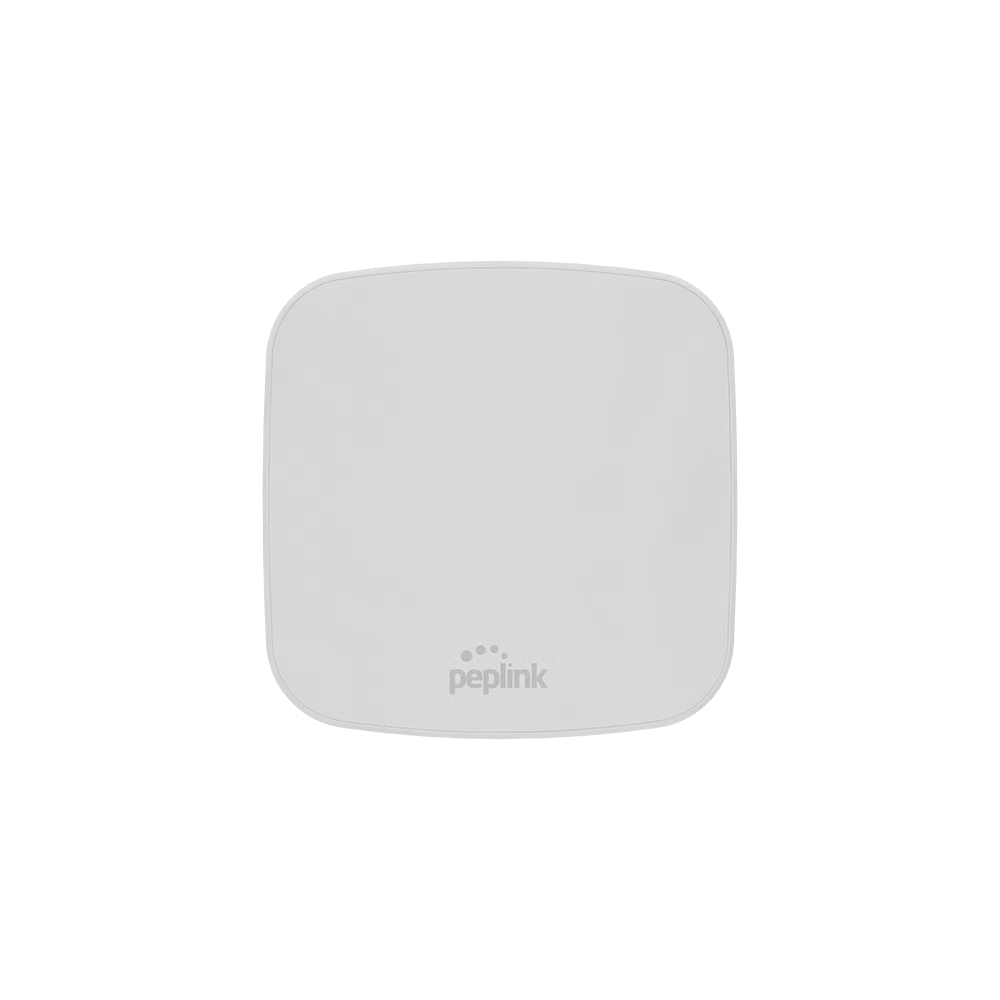
SOHO Routers

Enterprise-grade reliability and security for small businesses and home offices. Built for consistent connectivity, simple management, and future-ready growth.

SOHO Routers used for reliability and security for small businesses and home offices

Benefits of a SOHO Router

Icon representing high-speed connectivity for SOHO routers

High-Speed Connectivity

Fast, stable internet for uninterrupted video streaming, large file transfers, business conferencing, and multi-device productivity.

Icon representing comprehensive SOHO router security features

Comprehensive Security

Enterprise-level firewall, encryption, VPN, and intrusion prevention safeguard sensitive business and personal data.

Icon representing simplified remote management and centralized monitoring

Simplified Management

Remote configuration and centralized monitoring make administration straightforward for small office and home office users.

Icon representing scalable SOHO router architecture for growing networks

Scalable Architecture

Expand network resources as new devices or team members are added, maintaining consistent speed and reliability.

Icon representing cost-efficient all-in-one SOHO networking solution

Cost-Efficient Solution

All-in-one networking, management, and security tools; optimized for small business budgets and home office requirements.

SOHO Routers

Explore SOHO routers designed for secure, scalable connectivity.

What is a SOHO Wireless Router?

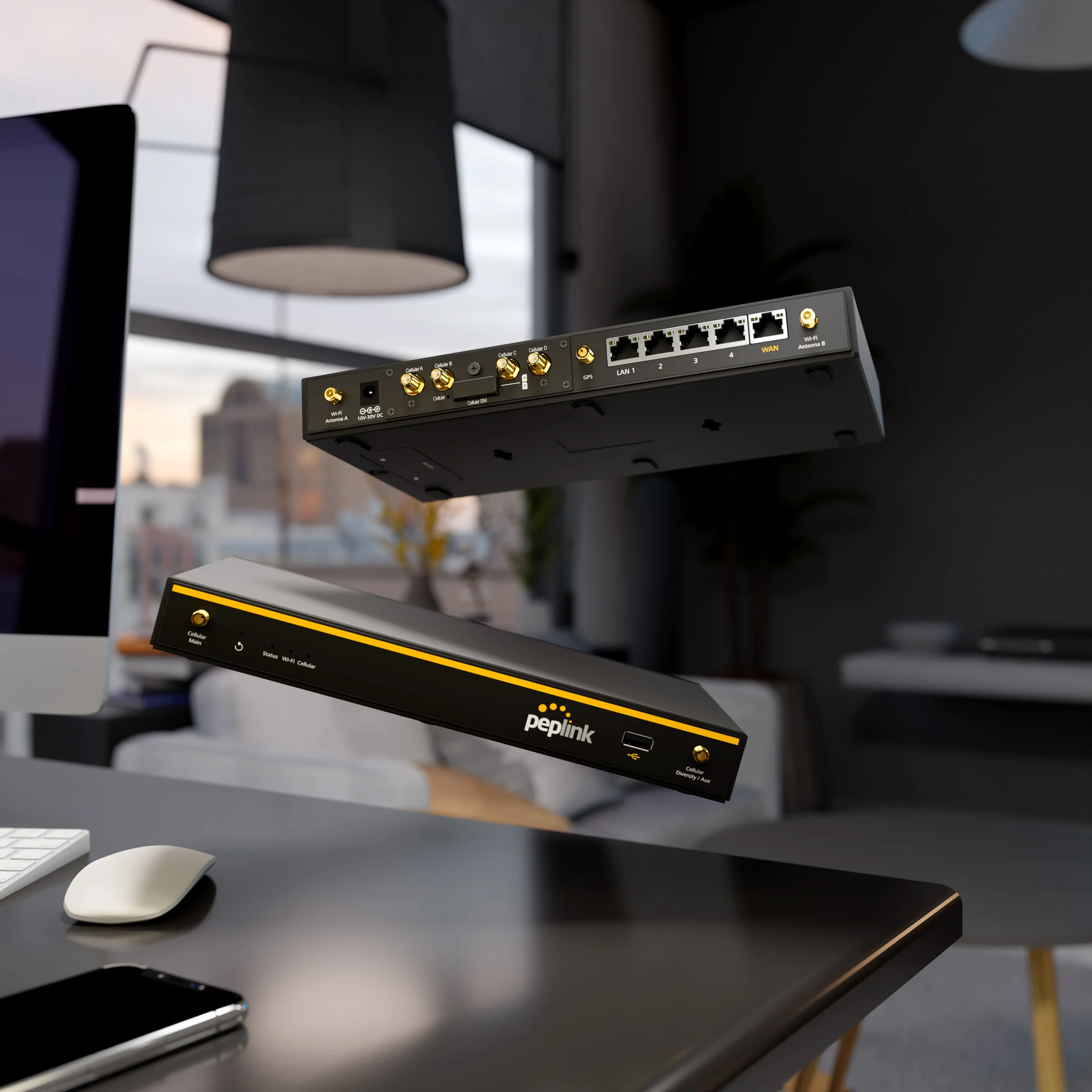
A SOHO Wireless Router combines routing, switching, firewall, and WiFi in a single device, designed for small business and home office environments. It connects computers, smartphones, and smart devices for secure, high-speed networking and resource sharing.

How to Set Up Your SOHO Router

Link the router's WAN port to your modem using an Ethernet cable.
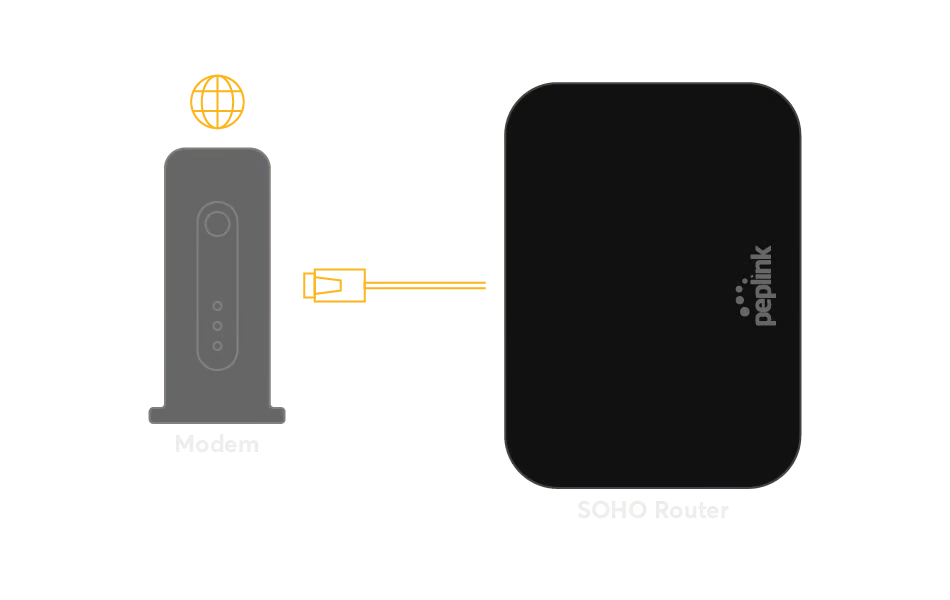
Step 1 illustration showing a SOHO router connected to a modem with an Ethernet cable

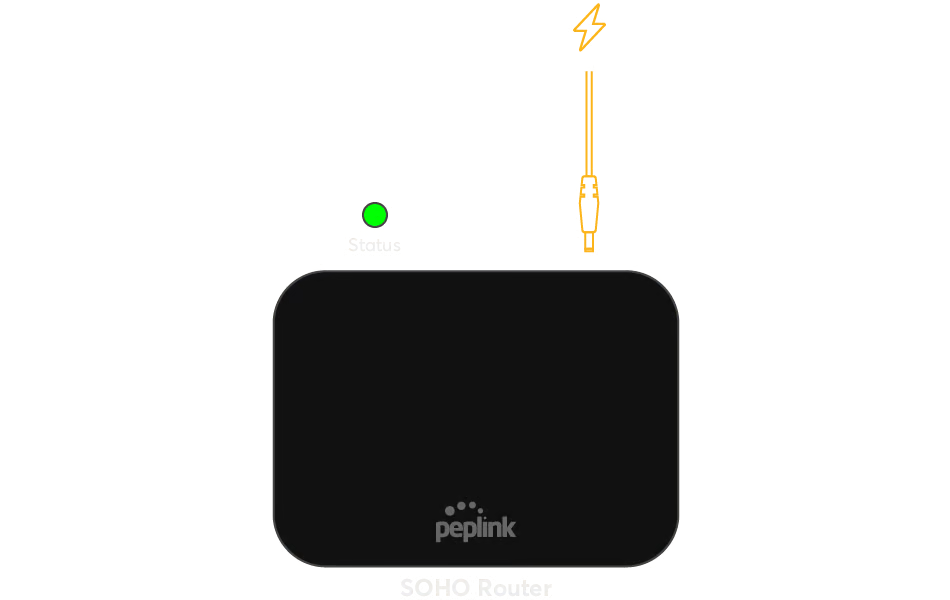
Connect the power supply and turn on the router.​

Step 2 illustration showing the SOHO router being powered on

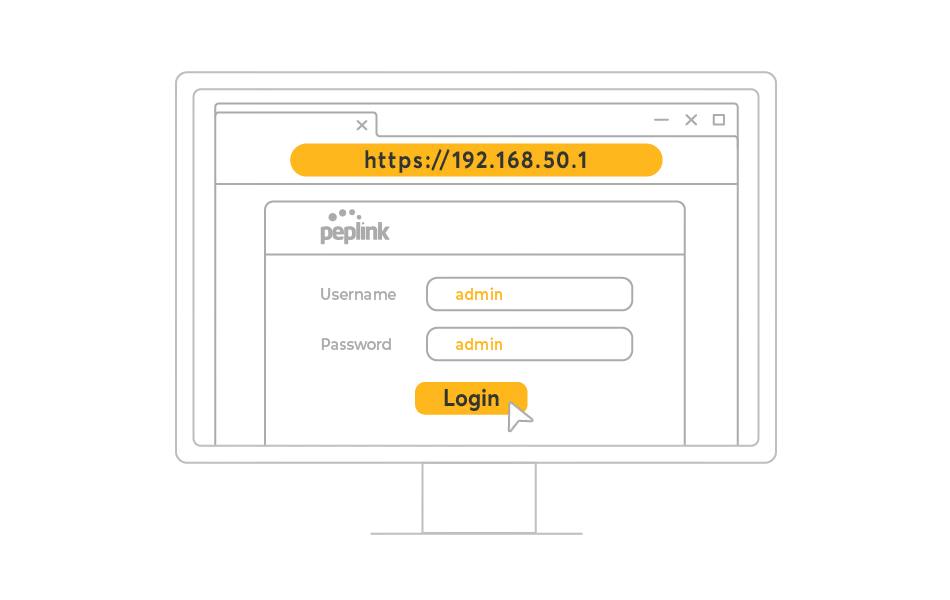
Open a web browser and enter the router's IP address to access configuration settings.​

Step 3 illustration showing a computer accessing the SOHO router configuration page in a web browser

Set up your network name (SSID), password, and security options (WPA3 recommended).​

Step 4 illustration showing SOHO router Wi-Fi name, password, and security settings configuration

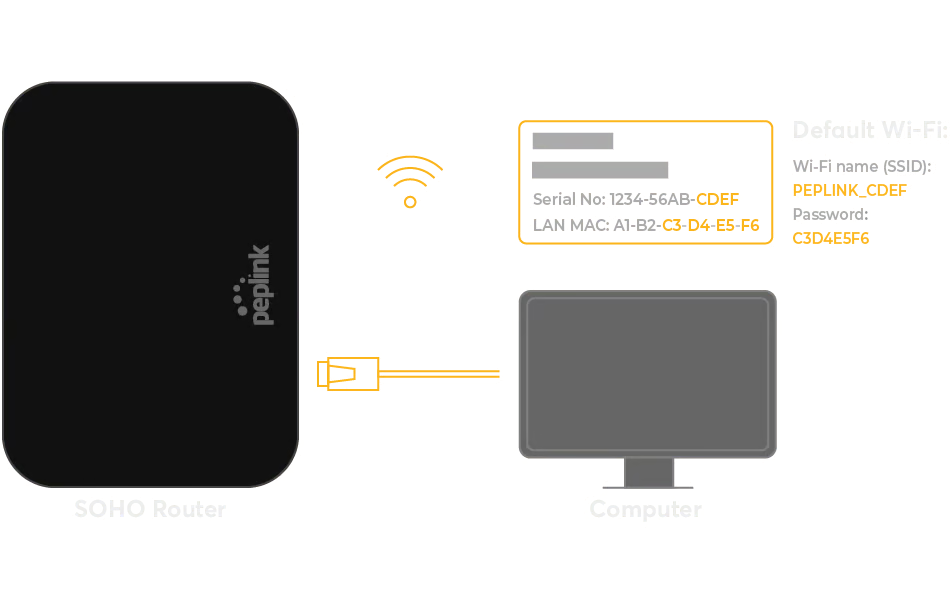
Link computers, phones, and other devices via Wi-Fi or Ethernet.
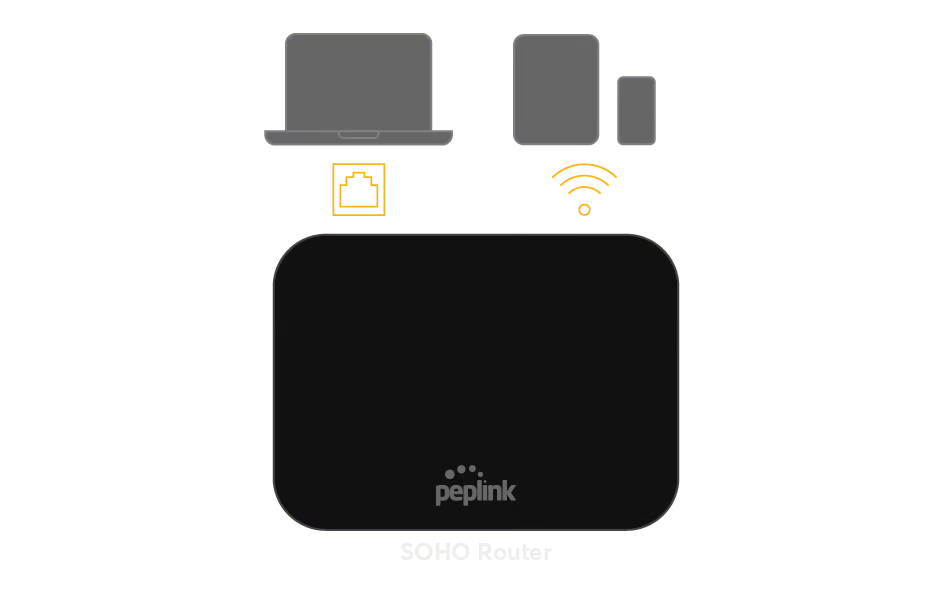
Step 5 illustration showing devices connected to the SOHO router through Wi-Fi and Ethernet